2015/08/24
How to Bypass or Disable the Start Screen in Office Programs
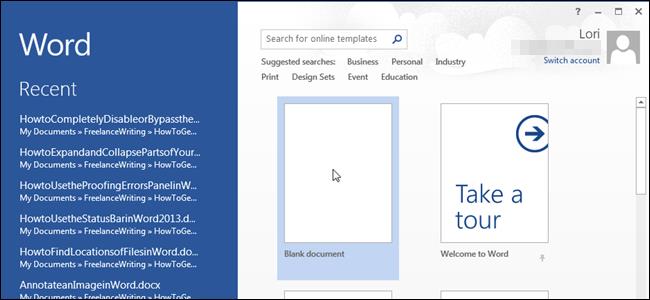
When you launch an Office program, a start screen displays showing available templates and a list of documents recently opened in the left column. This screen can be helpful, but I find it annoying, especially in Word 2013, so here is how you can easily disable it.
To access this setting, open an existing or new document in one of the Office programs and click the "File" tab. I am using Word 2013 in this example.
On the backstage screen, click "Options" in the list of items on the left.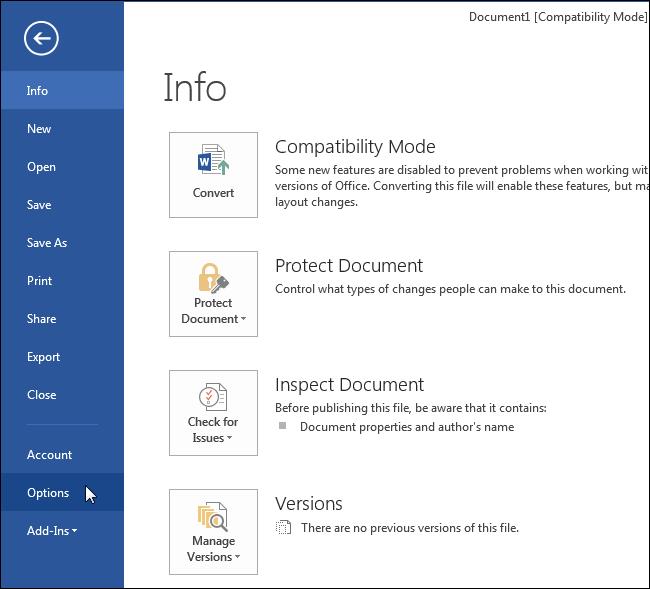
The "General" screen should display by default on the "Word Options" dialog box. In the "Start up options" section of the "General" screen, select the "Show the Start screen when this application starts" check box so there is NO check mark in the box.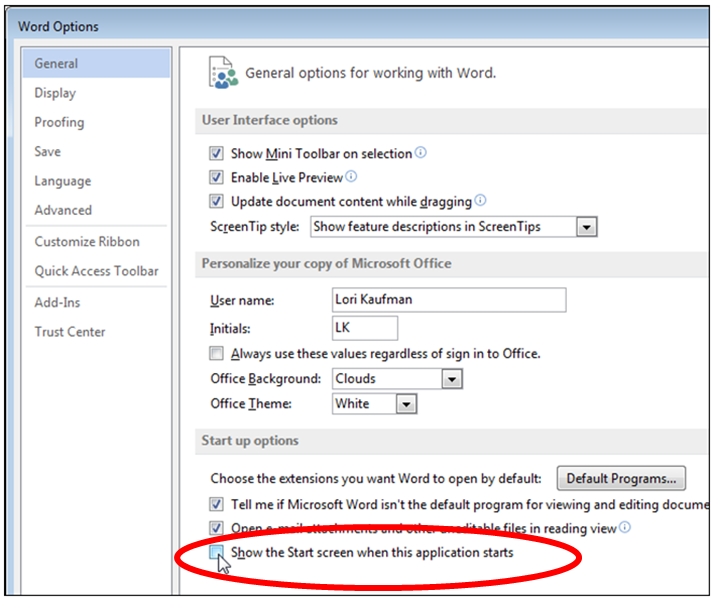
Click "OK" to accept the change and close the dialog box.
Now, when we open Word, without opening a specific document, the start screen is skipped and a new document is opened automatically.
NOTE: You must make this change separately in each Office program in which you want to skip the start screen.
If you don't want to completely disable the start screen, you can bypass the start screen when it displays by simply pressing the "Esc" key or the "Enter" key when the start screen displays to create a new document using the default "Blank document" template.