Linking Text Boxes
Microsoft Word Tip (2007 - 2013)
Linking text boxes allows the text to flow from one to another like columns.
- Create two text boxes side by side.


- Click in the text box on the left side.
- Click on the Format tab under the Drawing Tools contextual tab.
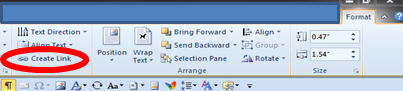
- Click on Create Link in the Text group.
- The mouse pointer changes to a cup. When the pointer is located in the left text box the cup appears upright
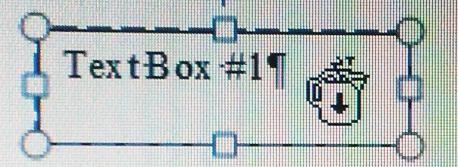
When you click in the right text box, the cup changes to a pouring cup, indicating that text could overflow into that text box.
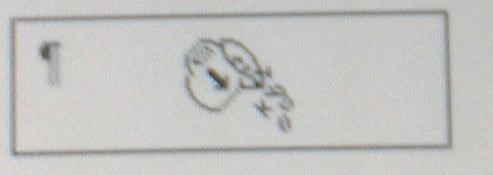
Text will now flow from one text box to the other.