Freeze both Rows AND Columns in Excel
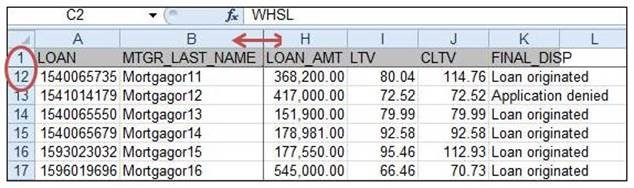
I would like to be able to navigate down my worksheet without losing sight of my heading rows, AND I want to see columns H and beyond next to column B.
When you want to freeze Rows, select the row BELOW the row you want to freeze, in this case, select row 2.
When you want to freeze Columns, select the column TO THE RIGHT of the column you want to freeze, in this case, select column C.
To freeze BOTH of these Rows and Columns, click in the cell of their combined locations.
Click in the cell C2.

From the View tab, select Freeze Panes.
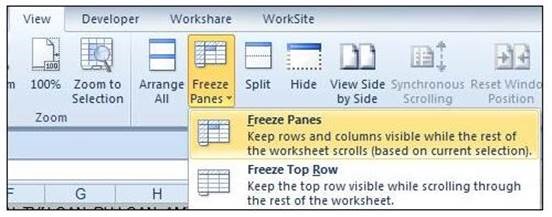
You can now scroll vertically without losing sight of your heading row, AND scroll horizontally to bring desired columns closer together.
Thanks to Dave Clarke, Technology Trainer at Buckley Sandler LLP for this tip!