Save As VERSION to PDF
___________________________________________________________________A.
Using iManage in Word
1. Open the Word document you want to save as a PDF as version 2.
2. Click on the iManage Ribbon

3. Click on Save as PDF and this will pop up:
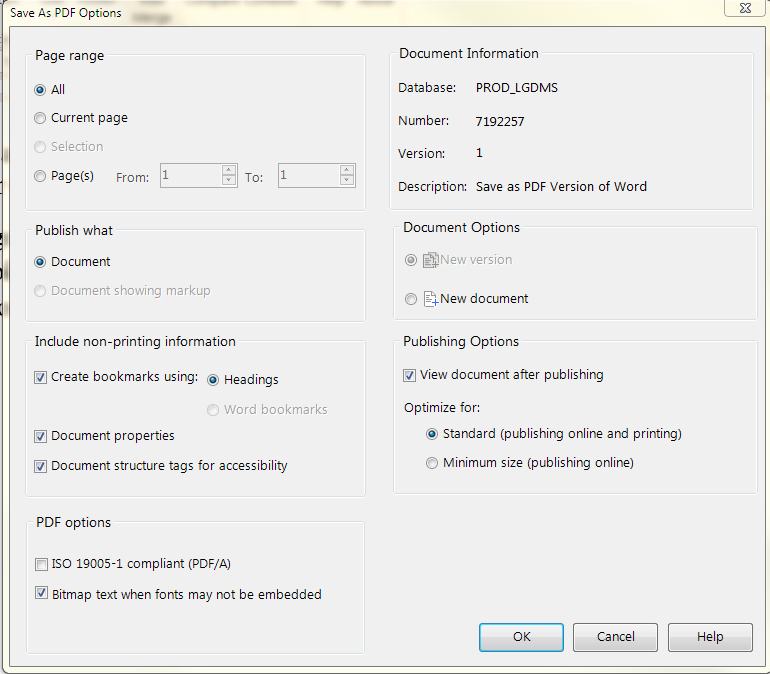
4. Make your choices
- Which pages
- Create bookmarks from headings
- New version or new document
- View document after converting
- Size optimization
Then click OK and this will pop up:
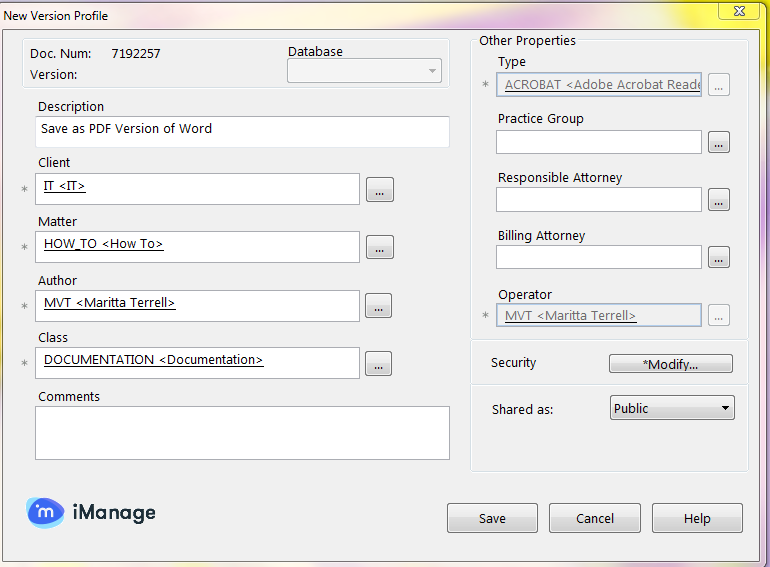
Click Save and your document will now have a version 2 as a PDF
B.
Using Nuance’s PowerPDF
1. Click on the iManage Save document to iManage Work
icon on your Quick Access toolbar

Choose
New Version and click
OK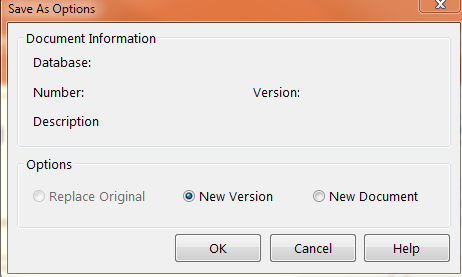
Find the document (i.e., Word document) you want to make this PDF a version of and then
click
New Version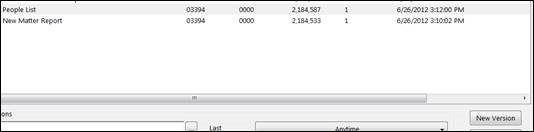
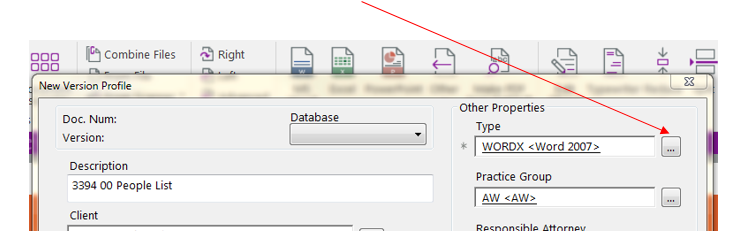
The profile of the new version document will come up. BE AWARE!!!! If you have choosen a
WORD document that is your FIRST version you will have to change the TYPE in this 2nd
version – click on the ellipsis beside WORD
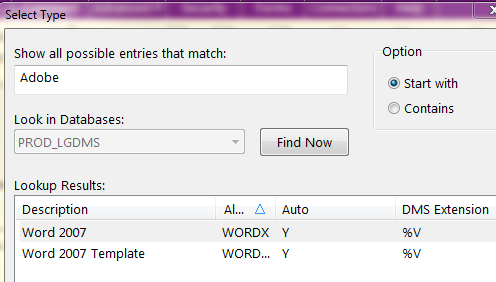
At the top, type
Adobe and click
Find Now. Choose
Adobe Acrobat Reader and click
OKTHEN you can click on
SAVE for your new version profile document.
 #HelpDeskandUserSupport #Applications